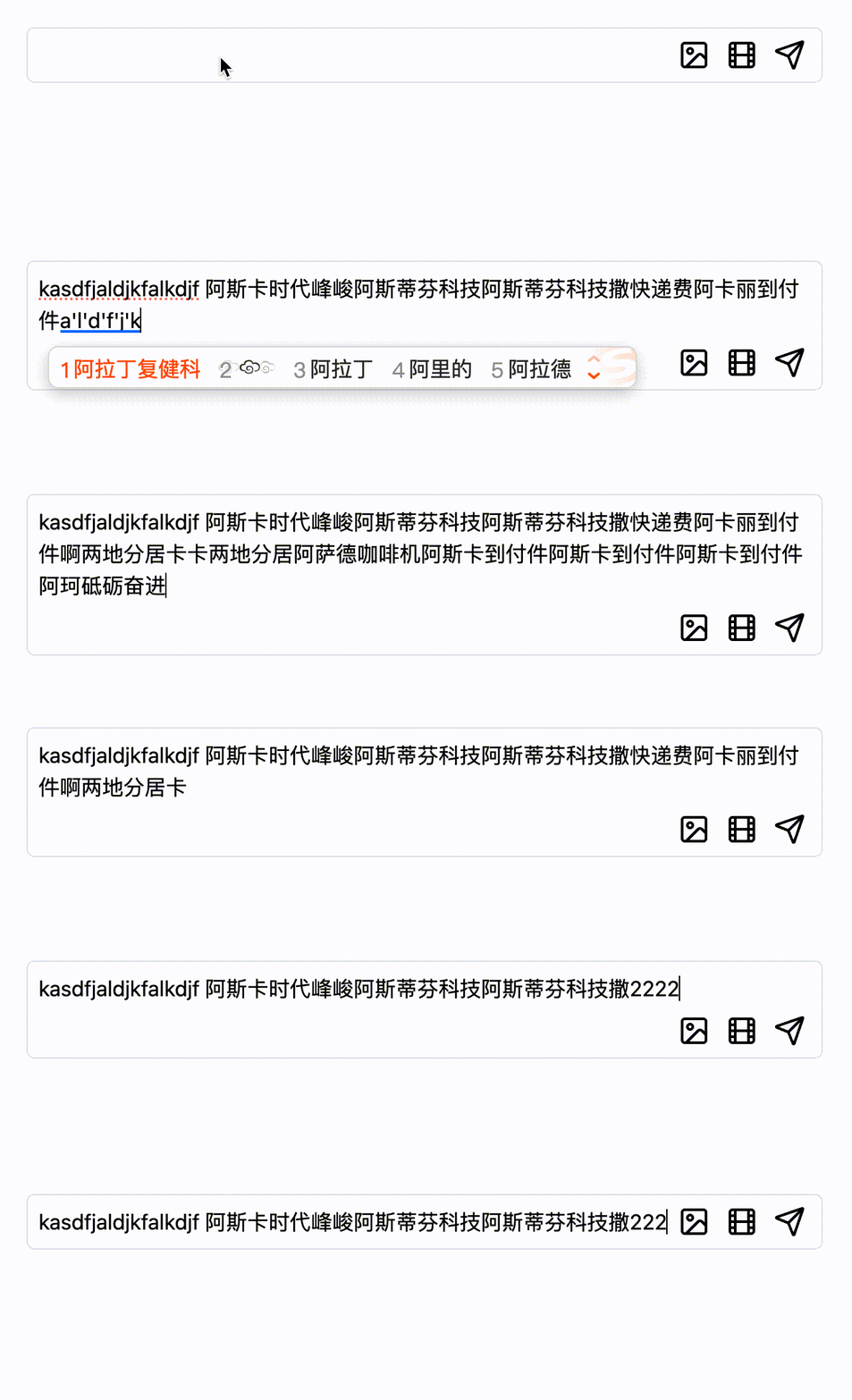
最近在开发 IM 产品时,需要改造聊天输入框并参考飞书的交互效果。初看到这个自动换行变高的效果,第一反应是需要通过 JavaScript 动态计算来实现。然而使用 AI 辅助开发后,效果并不理想。于是我查看了飞书网页版的源码,意外发现这个看似复杂的效果竟然是通过纯 CSS 的 Flex 布局实现的。

通过巧妙运用 flex-wrapflex-automargin-left: auto 这三个关键属性,不仅代码更加简洁优雅,性能表现也远超 JavaScript 方案。

效果动图

效果说明

当输入框内容较少时,输入框和按钮组在同一行显示:

1
[输入框........................] [按钮组]

当输入框内容增多需要换行时,由于 flex-wrap 的作用,按钮组会自动换到下一行,并通过 margin-left: auto 保持右对齐:

1
2
3
[输入框内容第一行.....................]
[输入框内容第二行.....................]
[按钮组]

效果体验

核心原理

这个效果的核心在于巧妙地运用了 Flex 布局的三个关键属性:

  1. flex-wrap: 允许 flex 项目换行
  2. flex-auto: 让输入框自动占据可用空间
  3. margin-left: auto: 将按钮组推到右侧

完整代码实现

1
2
3
4
5
6
7
8
9
10
11
12
13
14
15
16
17
18
19
20
21
22
23
24
25
26
27
28
29
30
31
32
33
34
35
36
37
38
39
40
41
42
43
44
45
46
47
48
49
50
51
52
53
54
55
56
57
58
59
60
61
62
63
64
65
66
67
68
69
70
71
72
73
74
75
76
77
78
79
80
81
<!DOCTYPE html>
<html lang="en">
<head>
<meta charset="UTF-8" />
<meta name="viewport" content="width=device-width, initial-scale=1.0" />
<meta http-equiv="X-UA-Compatible" content="ie=edge" />
<title>Flex 自动变高输入框</title>
<script src="https://cdn.tailwindcss.com"></script>
</head>
<body class="p-10">
<div class="flex flex-row flex-wrap border rounded-md w-[600px] pb-2">
<!-- 输入框 -->
<div
contenteditable
class="relative overflow-y-scroll flex-auto max-h-[100px] has-[div+div]:w-full m-2 mb-0 outline-none"
placeholder="请输入消息..."
></div>

<!-- 按钮组 -->
<div class="flex flex-nowrap items-center ml-auto mr-3 mt-2 gap-3">
<button title="插入图片">
<svg
xmlns="http://www.w3.org/2000/svg"
width="24"
height="24"
viewBox="0 0 24 24"
fill="none"
stroke="currentColor"
stroke-width="2"
stroke-linecap="round"
stroke-linejoin="round"
>
<rect width="18" height="18" x="3" y="3" rx="2" ry="2" />
<circle cx="9" cy="9" r="2" />
<path d="m21 15-3.086-3.086a2 2 0 0 0-2.828 0L6 21" />
</svg>
</button>
<button title="插入视频">
<svg
xmlns="http://www.w3.org/2000/svg"
width="24"
height="24"
viewBox="0 0 24 24"
fill="none"
stroke="currentColor"
stroke-width="2"
stroke-linecap="round"
stroke-linejoin="round"
>
<rect width="18" height="18" x="3" y="3" rx="2" />
<path d="M7 3v18" />
<path d="M3 7.5h4" />
<path d="M3 12h18" />
<path d="M3 16.5h4" />
<path d="M17 3v18" />
<path d="M17 7.5h4" />
<path d="M17 16.5h4" />
</svg>
</button>
<button title="发送消息">
<svg
xmlns="http://www.w3.org/2000/svg"
width="24"
height="24"
viewBox="0 0 24 24"
fill="none"
stroke="currentColor"
stroke-width="2"
stroke-linecap="round"
stroke-linejoin="round"
>
<path
d="M14.536 21.686a.5.5 0 0 0 .937-.024l6.5-19a.496.496 0 0 0-.635-.635l-19 6.5a.5.5 0 0 0-.024.937l7.93 3.18a2 2 0 0 1 1.112 1.11z"
/>
<path d="m21.854 2.147-10.94 10.939" />
</svg>
</button>
</div>
</div>
</body>
</html>

如何下载QQ音乐里面收藏的歌曲

发布在 技术

免责声明

  • 此文章具有非常强的时效性。
  • 本文只是技术思路分享,未实现完整程序,更不存在传播相关程序。
  • 测试时下载的歌曲,也在测试完成后立即删除,并未进行传播保留。

前言

这几天失业了,QQ 音乐也正好提醒会员即将到期,显然是不会续费了。那么,有没有可能将已有的歌曲保存到本地,以便在失业潮里也能…。打住,版权,版权,还是版权,我们只做技术分析学习。

从哪里开始?

QQ 音乐有多种版本:PC/Mac 版、网页版、移动端版,显然,网页版是最容易进行技术分析的。

获取歌曲列表

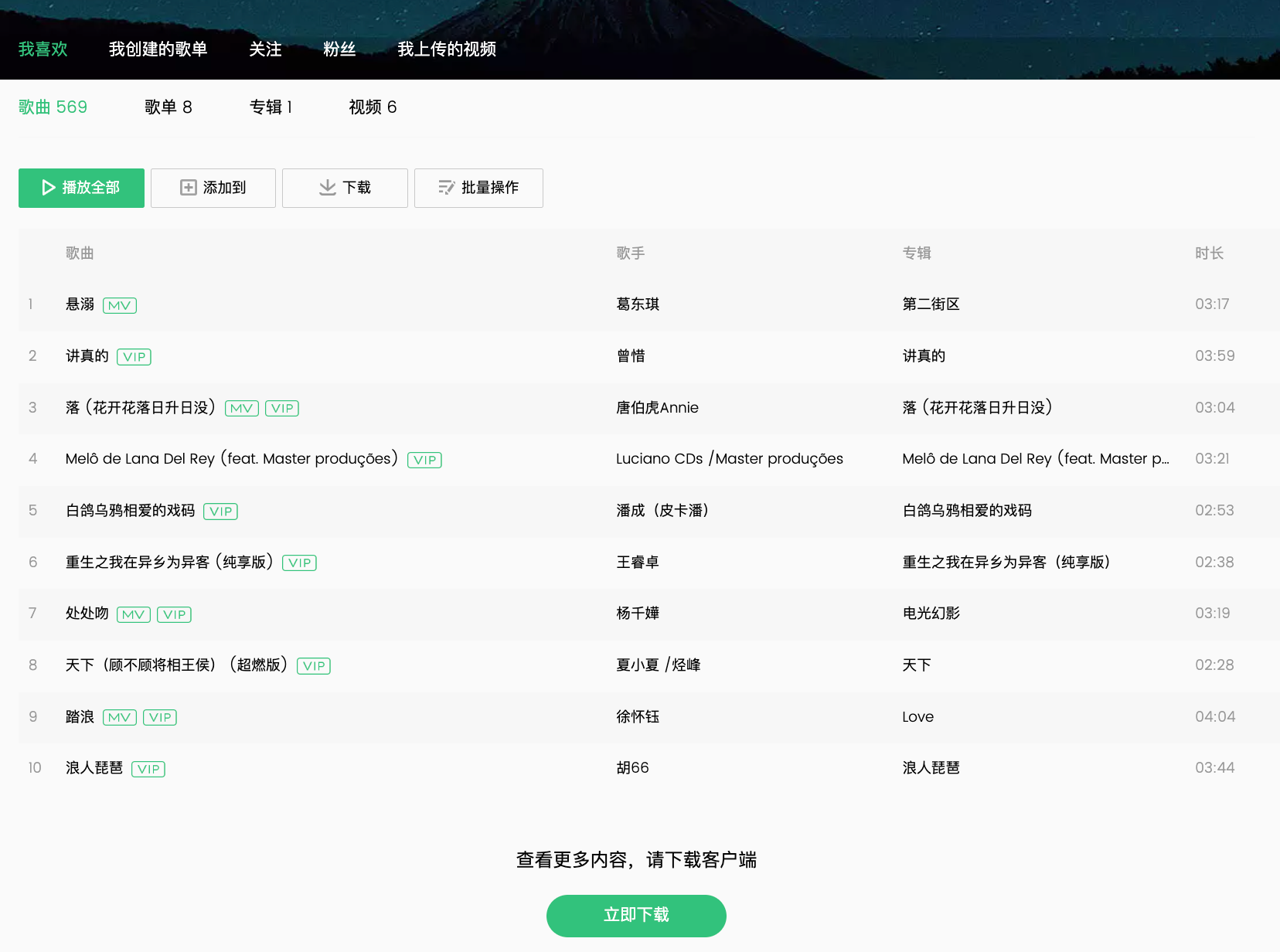
在浏览器打开 https://y.qq.com/ 后登录,发现我的音乐音乐列表有限制,仅显示前 10 首。

查看 Network 接口,可以看到相关请求:

1
2
3
4
5
6
7
8
9
10
11
12
13
14
15
16
17
18
// POST
// https://*.*.qq.com/cgi-bin/musics.fcg?_=**&sign=**

// Body
{
"comm": {
// 省略其他参数
},
"req_1": {
"module": "**",
"method": "**",
"param": {
"song_begin": 0,
"song_num": 10
// 省略其他参数
}
}
}

很容易看出,req_1.param.song_num 是控制返回歌曲数量的参数。

尝试通过 Postman 修改 song_num 参数值为 1000 后返回接口会报错。

通过多次测试确定是 sign=** 参数的原因,看样子页面在发送请求前会对请求参数进行一个签名计算,服务端进行验证。

尝试在 DevTools 中操作,在相关代码修改了song_num: 10 的值,后面代码再进行签名、发出请求,就可以成功获取到歌曲列表了。

下载歌曲

歌曲列表 API 并不包含歌曲文件地址,因此需要进入歌曲播放页面,通过 DevTools 查看网络请求,发现一个 GET 请求:

1
https://**.stream.qqmusic.qq.com/**.m4a?guid=**&vkey=**&uin=**&fromtag=**

返回了歌曲文件内容,保存为 m4a 文件后可以播放。

观察这个请求参数 发现关键难点参数是 vkey,他也是类似上面的 sign 参数,也是通过一些参数加算法处理得到的,服务端会进行验证。

实现思路

如果通过 httpClient 去实现这个程序,虽然执行效率会更高,但需要对诸多参数进行分析,还需要从压缩的 js 代码中扒取到相关算法代码,还可能遭遇验证码问题。考虑到这类需求功能通常只会用一两次,也不在乎这点执行效率,所以这个方案性价比太低。

那么选择使用 Selenium 或者 Puppeteer 来实现,性价比是最高的,只需要少量代码,少量调试即可快速搞定需求。

下面实例代码是 Puppeteer 实现的。

步骤

  1. 登录授权

Puppeteer 打开 QQ 音乐,用户再手动登录。

  1. 获取歌曲列表

可以通过 request 事件,对指定 js 文件进行拦截,修改为本地 js 文件,本地文件对 song_num: 10 参数进行了修改。下面是示例代码。

1
2
3
4
5
6
7
8
9
10
11
12
13
14
15
const likePage = await browser.newPage();
likePage.setRequestInterception(true);
likePage.on("request", (request) => {
const url = request.url();
if (url.includes("xxxxxx.js")) {
request.respond({
status: 200,
contentType: "application/javascript; charset=utf-8",
body: fs.readFileSync("xxxxxx.js", { encoding: "utf-8" }),
});
} else {
request.continue();
}
});
await likePage.goto("https://**.qq.com/n/**/profile/like/song");
  1. 下载歌曲

页面渲染出歌曲列表后,我们通过以下代码,点击一首歌曲的播放按钮,打开播放页面。

1
2
3
await likePage.evaluate(
`document.querySelector('.songlist__item:nth-child(${index}) .list_menu__play').click()`
);

我们在播放页面的 request 事件中对请求的 url 进行判断,如果是歌曲文件,再通过 httpClient 下载保存到本地即可。保存成功再切换到下一首,直到歌曲列表全部下载完成。

以上就整个程序的实现思路了。

可能会遇到的坑

  • 播放过的歌曲可能会缓存在浏览器的 IndexedDB 中,缓存过的歌曲不再进行网络请求。
  • 歌曲列表中可能会遇到一些无版权的歌曲,需要判断进行跳过或先从列表中移除。
  • 歌曲名、歌手名等可能存在特殊字符,用作文件名时需要进行处理。

从 2012 年开始,我就被骑行的魅力深深吸引。过去的两辆都是山地车,每次看到那些流畅优雅的公路车在路上疾驰,心里总是充满向往。

如今公路车市场异常火爆,很多热门车型一车难求。这辆并非我最初心仪的款式,但当真正看到它时,依然被它的外观所吸引。

🚴‍♂️ 我的新战车:Merida 美利达 SCULTURA ENDURANCE 4000( 2023 款)

车架:SCULTURA ENDURANCE CF3 II(耐力架,长途舒适性更佳)
尺寸:XS
颜色:黑色(低调而充满力量感)
前叉:SCULTURA ENDURANCE CF3 DISC
套件:Shimano 105 油压碟刹 11 速(换挡顺滑,制动力稳定)
轮组:铝合金轮组
价格:14800 ¥

希望它能陪我征战更多未知的道路,也期待用它来挑战更长的骑行距离,记录每一次心跳加速的瞬间!

前言

最近业余时间写 React 项目比较多,并且都用的 create-react-app 创建项目,每次创建完后,总要增删改一些配置和文件,显得有点麻烦。

回想起前几年在公司也做过类似的脚手架工具,所以今天打算自己写一个简单的,方便日常使用。

创建 cli

如果为了省事,可以直接通过 oclif 这个项目来创建 cli 项目,非常好用。

1
npx oclif generate mynewcli

如果想自己实现的话,原理大体如下:

首先在 package.json 中的 bin 字段中增加配置。如:

1
2
3
4
5
6
{
"name": "@my-space/react-dev-kit",
"bin": {
"react-dev-kit": "./lib/index.js"
}
}

然后在 ./lib/index.js 文件的第一行写上 #!/usr/bin/env node

我的 ./lib/index.js 文件是 src/index.ts 文件生成的。

剩下的主要就是接受命令行参数,可以自己解析参数,但一般使用三方库,如: commander

1
2
3
4
5
6
7
8
9
10
11
12
13
14
15
16
17
18
19
// src/index.ts
#!/usr/bin/env node
import { Command } from "commander";
import { createAction } from "./actions/create";
import { startAction } from "./actions/start";
import { buildAction } from "./actions/build";

const program = new Command();

program
.name("@my-space/react-dev-kit")
.description("The React Development Toolkit for MySpace")
.version("1.0.0");

program.command("create").description("").action(createAction);
program.command("start").description("").action(startAction);
program.command("build").description("").action(buildAction);

program.parse();

create command

create 命令相对简单,主要是提供一些模版供用户选择,并通过网络下载到本地。不过也还有一些细节是可以做的。

  • 模版列表和内容可以存储在类似 GitHubGitLab 的远程仓库中,并通过网络请求获取,这样维护起来更加方便。
  • 模版内容提供一个类似 define.js 的文件,先拉取到此文件,再根据配置让用户填写更多信息,配置完后需要执行的代码命令。
  • 下载模版文件时,可下载 zip 文件,再通过 7-zip 进行解压。

build command

考虑到可扩展性,除了引入外部配置,还支持了部分远程配置,同时为了后面使用方便还需要把常用的路径给事先获取到。

路径

这部分可以根据实际情况进行调整。我这里基本上是按照约定,固定了大部分路径。

1
2
3
4
5
6
7
8
9
10
11
12
13
14
15
16
17
18
19
20
21
22
23
24
25
// src/core/paths.ts
import fs from "fs";
import path from "path";
import { IExternalConfig, IPaths } from "../types";

export const appDirectory = fs.realpathSync(process.cwd());

export const resolveApp = (relativePath: string) =>
path.resolve(appDirectory, relativePath);

export const moduleFileExtensions = [".ts", ".tsx", ".js", ".jsx"];

export const getPaths = (config: IExternalConfig): IPaths => {
const path: IPaths = {
appPath: resolveApp("."),
appBuild: resolveApp(config.outputDir),
appPublic: resolveApp("public"),
appHtml: resolveApp("public/index.html"),
appSrc: resolveApp("src"),
appIndexJs: resolveApp("src/index.tsx"),
appTsConfig: resolveApp("tsconfig.json"),
// ...
};
return path;
};

外部配置

通过 IO 读取约定的配置文件,比如项目根目录下的 react-dev-kit.config.jsonreact-dev-kit.config.js 文件,这部分没任何难度。

远程配置

把部分配置设计为远程配置,比如 externals 配置,这样在有些项目部希望打包一些三方库( reactreact-domreact-router-dom 等)时就非常方便了。

远程服务器上可以存储一个类似下面的 JSON 配置文件。

1
2
3
4
5
6
7
8
9
10
11
12
13
14
15
16
17
18
19
20
// remote-externals.json
[
{
"moduleName": "react",
"globalName": "React",
"version": "xx.xx.x",
"js": [
"https://cdn.jsdelivr.net/npm/react@xx.xx.x/umd/react.production.min.js"
]
},
{
"moduleName": "react-dom",
"globalName": "ReactDOM",
"version": "xx.xx.x",
"js": [
"https://cdn.jsdelivr.net/npm/react-dom@xx.xx.x/umd/react-dom.production.min.js"
]
}
// ...
]

通过 httpAxios 等之类的库获取到上面的 json 内容,然后配置到 Webpackexternals 中。

1
2
3
4
const webpackConfig: Webpack.Configuration = {
//...
externals: getWebpackExternals(),
};

只配置 externals 还不够的,还需要在 index.html 引入对应的 jscss 文件,我们可以通过 Webpackplugin 来实现。

可参考如下:

1
2
3
4
5
6
7
8
9
10
11
12
13
14
15
16
17
18
19
20
21
22
23
24
25
26
27
28
29
30
31
32
33
34
35
// src/plugins/app-html-plugin.ts
import { Compiler } from "webpack";
import HtmlWebpackPlugin from "html-webpack-plugin";
import { IRemoteConfig } from "../types";

export class AppHtmlPlugin {
private remoteConfig: IRemoteConfig;

constructor(remoteConfig: IRemoteConfig) {
this.remoteConfig = remoteConfig;
}

apply(compiler: Compiler) {
compiler.hooks.compilation.tap("AppHtmlPlugin", (compilation) => {
HtmlWebpackPlugin.getHooks(compilation).beforeAssetTagGeneration.tapAsync(
"AppHtmlPlugin",
(data, cb) => {
const js: string[] = [];
const css: string[] = [];
this.remoteConfig.configContent.externals.forEach((item) => {
if (Array.isArray(item.js) && item.js.length > 0) {
item.js.forEach((n) => js.push(n));
}
if (Array.isArray(item.css) && item.css.length > 0) {
item.css.forEach((n) => css.push(n));
}
});
data.assets.js = [...js, ...data.assets.js];
data.assets.css = [...css, ...data.assets.css];
cb(null, data);
}
);
});
}
}

上下文

为了方便后续代码的使用,我们可以设计一个 Context 对象,在一开始把需要的数据配置都放在里面。

1
2
3
4
5
6
7
8
9
10
11
12
13
14
15
16
17
18
19
20
// src/core/context.ts
import { Env, IContext, Mode } from "../types";
import { getRemoteConfig } from "./remote-config";
import { getExternalConfig } from "./external-config";
import { getPaths } from "./paths";

export const createContext = async (mode: Mode): Promise<IContext> => {
const env: Env = {
NODE_ENV: mode,
BABEL_ENV: mode,
};
for (const key in env) {
process.env[key] = env[key];
}
const remoteConfig = await getRemoteConfig();
const externalConfig = getExternalConfig(env);
const paths = getPaths(externalConfig);

return { mode, env, paths, externalConfig, remoteConfig };
};

整合配置

这部分相对灵活,可以根据需求进行配置。最终,通过 webpack-merge 合并 内置配置远程配置外部配置,生成最终的 Webpack 配置。

1
2
3
4
5
6
7
8
9
10
11
12
13
14
15
16
17
18
19
20
21
22
23
24
25
26
27
28
29
30
31
32
33
34
35
36
37
38
39
40
41
42
43
44
45
46
47
48
49
50
51
52
53
// src/core/webpack-config.ts
import Webpack, { DefinePlugin, ProgressPlugin } from "webpack";
import merge from "webpack-merge";
import { IContext } from "../types";
import { moduleFileExtensions } from "./paths";
import { AppHtmlPlugin } from "../plugins/app-html-plugin";

export const getWebpackConfig = ({
mode,
env,
paths,
externalConfig,
remoteConfig,
}: IContext) => {
const isEnvDevelopment = mode === "development";
const isEnvProduction = mode === "production";

const webpackConfig: Webpack.Configuration = {
mode: isEnvDevelopment ? "development" : "production",
entry: [paths.appIndexJs],
output: {
publicPath: externalConfig.publicPath,
path: paths.appBuild,
// ...
},
devtool: isEnvProduction ? "source-map" : "cheap-module-source-map",
stats: "errors-warnings",
resolve: {
extensions: moduleFileExtensions,
},
optimization: {
// ...
},
module: {
rules: [
// ...
],
},
plugins: [
// ...
new AppHtmlPlugin(remoteConfig),
new DefinePlugin({
"process.env": Object.keys(env).reduce((obj, key) => {
obj[key] = JSON.stringify(env[key]);
return obj;
}),
}),
// ...
],
externals: remoteConfig.getWebpackExternals(),
};
return merge(webpackConfig, externalConfig.configureWebpack);
};

编译

获取最终配置后,直接使用 Webpack.Compiler 进行编译即可。

1
2
3
4
5
6
7
8
9
10
11
12
13
14
15
16
17
18
19
20
21
22
23
24
25
26
27
28
29
// src/actions/build.ts
import fs from "fs-extra";
import Webpack from "webpack";
import { createContext } from "../core/context";
import { getWebpackConfig } from "../core/webpack-config";

export const buildAction = async () => {
const context = await createContext("production");

const config = getWebpackConfig(context);
const compiler = Webpack(config);

fs.emptyDirSync(context.paths.appBuild);
fs.copySync(context.paths.appPublic, context.paths.appBuild, {
dereference: true,
filter: (file) => file !== context.paths.appHtml,
});
compiler.run((err, stats) => {
console.log("-".repeat(100));
if (stats) {
console.log(stats.toString());
console.log("-".repeat(100));
}
if (!err) {
console.log("build success");
console.log("-".repeat(100));
}
});
};

本文主要提供思路,并未详细列出各类 loader 和具体配置,建议读者自行查阅最新的相关文档。

start command

start 命令和 build 基本是差不多的,主要就是增加 dev-server 相关配置,可参考如下:

1
2
3
4
5
6
7
8
9
10
11
12
// src/actions/start.ts
export const startAction = async () => {
const context = await createContext("development");

const config = getWebpackConfig(context);
const compiler = Webpack(config);

const devServerConfig = getWebpackConfigDevServer(context);
const server = new WebpackDevServer(devServerConfig, compiler);

server.start();
};
1
2
3
4
5
6
7
8
9
10
11
12
13
14
15
16
// src/core/dev-server-config.ts
import webpackDevServer from "webpack-dev-server";
import { merge } from "webpack-merge";
import { IContext } from "../types";

export const getWebpackConfigDevServer = (context: IContext) => {
const defaultConfig: webpackDevServer.Configuration = {
port: "auto",
hot: true,
open: true,
client: {
progress: true,
},
};
return merge(defaultConfig, context.externalConfig.devServer);
};

闲来无事搞了个Jenkins主题

发布在 技术

前言

这几周不加班,早早到家,闲来无事在 NAS 服务器上搭建了个 Jenkins,用了几天后觉得自带的主题有点单调。

Them Plguin

需要安装 Simple Theme PluginLogin Theme Plugin

怎么安装和使用就不说明了,参考官方最新的文档更为靠谱。

主要他们提供了加载 cssjs 的配置。

本地 Web 服务

本地开发时为了方便查看效果,我用 NodeJSKoa 在本地启动了一个 Web 服务,让 Theme Plugin 读取我本地的 cssjs 文件。

这样修改完 cssjs 文件后,刷新页面即可看到效果,而不需要每次把 cssjs 的文件内容配置到 Theme Plugin 中。

1
2
3
4
5
6
7
8
const Koa = require("koa");
const serve = require("koa-static-server");

const port = 4600;
const app = websockify(new Koa());

app.use(serve({ rootDir: "dist", rootPath: "/" }));
app.listen(port);

引入 Less

写了几句 css 后,发现没嵌套功能写的真难受,于是引入 Less,方便编写 css。

1
2
3
4
5
6
7
8
9
10
11
12
13
14
15
16
17
18
19
20
const less = require("less");

const renderLess = async (lessFilePath) => {
let lessFileContent = fs.readFileSync(lessFilePath, { encoding: "utf-8" });
let lessRenderRes = await less.render(lessFileContent);

let targetPath = path.join(
__dirname,
"../dist",
lessFilePath.substring("src/".length, lessFilePath.length)
);
let targetDir = path.dirname(targetPath);
let targetName = path.basename(targetPath, ".less") + ".css";
if (!fs.existsSync(targetDir)) {
fs.mkdirSync(targetDir, { recursive: true });
}
targetPath = path.join(targetDir, targetName);
fs.writeFileSync(targetPath, lessRenderRes.css, { encoding: "utf-8" });
return { path: targetPath.replace(path.join(__dirname, "../dist"), "") };
};

监听文件变化

既然都引入了 Less,那么肯定要引入 自动编译,同时为了后续热更新。

1
2
3
4
5
6
7
8
9
10
11
12
13
14
15
16
17
const glob = require("glob");
const chokidar = require("chokidar");

const watchAndRenderLess = () => {
glob("src/**/*.less", {}, function (er, files) {
files.forEach(renderLess);
});
const watcher = chokidar.watch("src/**/*.less");
watcher.on("all", async (e, filePath, stats) => {
if (e == "add" || e == "change" || e == "addDir") {
let result = await renderLess(filePath);
console.log(`${url}${result.path}`);
}
});
};

watchAndRenderLess();

现在就可以愉快的使用 Less 了。

热更新

每次编写样式后,都需要手动刷新页面才能看到效果,能不能自动热更新页面,不需要手动刷新页面呢?

使用三方库虽然方便,但自己尝试写一下也是不错的选择。

主要就是监听样式文件变化,然后通过 webScoket 通知页面,页面再加载新的样式。

1
2
3
4
5
6
7
8
9
10
11
12
13
14
15
16
17
18
19
20
21
22
23
24
25
26
27
28
29
30
31
32
33
34
35
36
37
38
39
40
41
42
43
const websockify = require("koa-websocket");

const port = 4600;
const url = `http://localhost:${port}`;
const clients = new Set();

app.ws.use(function (ctx, next) {
clients.add(ctx.websocket);
ctx.websocket.onclose = () => {
clients.delete(ctx.websocket);
};
return next(ctx);
});

const watchAndRenderLess = () => {
// ...
const watcher = chokidar.watch("src/**/*.less");
watcher.on("all", async (e, filePath, stats) => {
if (e == "add" || e == "change" || e == "addDir") {
// ...
refresh(result.path);
}
});
};

const renderClientJs = () => {
let content = fs.readFileSync(path.join(__dirname, "client.js"), {
encoding: "utf-8",
});
content = content.replace(/\$\[port\]/g, port);
fs.writeFileSync(path.join(__dirname, "../dist", "client.js"), content, {
encoding: "utf-8",
});
};

const refresh = (filePath) => {
clients.forEach((client) => {
let data = { type: "refresh", path: filePath };
client.send(JSON.stringify(data));
});
};

renderClientJs();
1
2
3
4
5
6
7
8
9
10
11
12
13
14
15
16
17
18
19
20
21
22
23
24
25
26
27
28
29
30
31
32
33
34
35
36
37
38
39
// client.js
(function () {
// 此文件用于修改主题样式文件时,热更新样式用的。

let host = "localhost:$[port]";
let files = new Map();

let findTargetCss = () => {
let links = [...document.querySelectorAll('link[rel="stylesheet"]')];
for (const link of links) {
let url = new URL(link.href);
if (url.host === host) {
files.set(url.pathname, link);
}
}
};

findTargetCss();

let ws = new WebSocket(`ws://${host}/`);
ws.onmessage = (e) => {
console.log("message", e);
let data = JSON.parse(e.data);
if (data.type == "refresh") {
if (files.has(data.path)) {
let node = files.get(data.path);
let url = new URL(node.href);
let qs = new URLSearchParams(url.search);
qs.set("t", new Date().getTime());
url.search = qs.toString();
node.href = url.toString();
}
}
};
ws.onopen = (e) => {
console.log("open", e);
ws.send("hello world");
};
})();

通过 Theme Plugin 再把这个 client.js 引入,就可以实现热更新了。

上面的代码仅是 demo,为了快速解决问题随手写的。

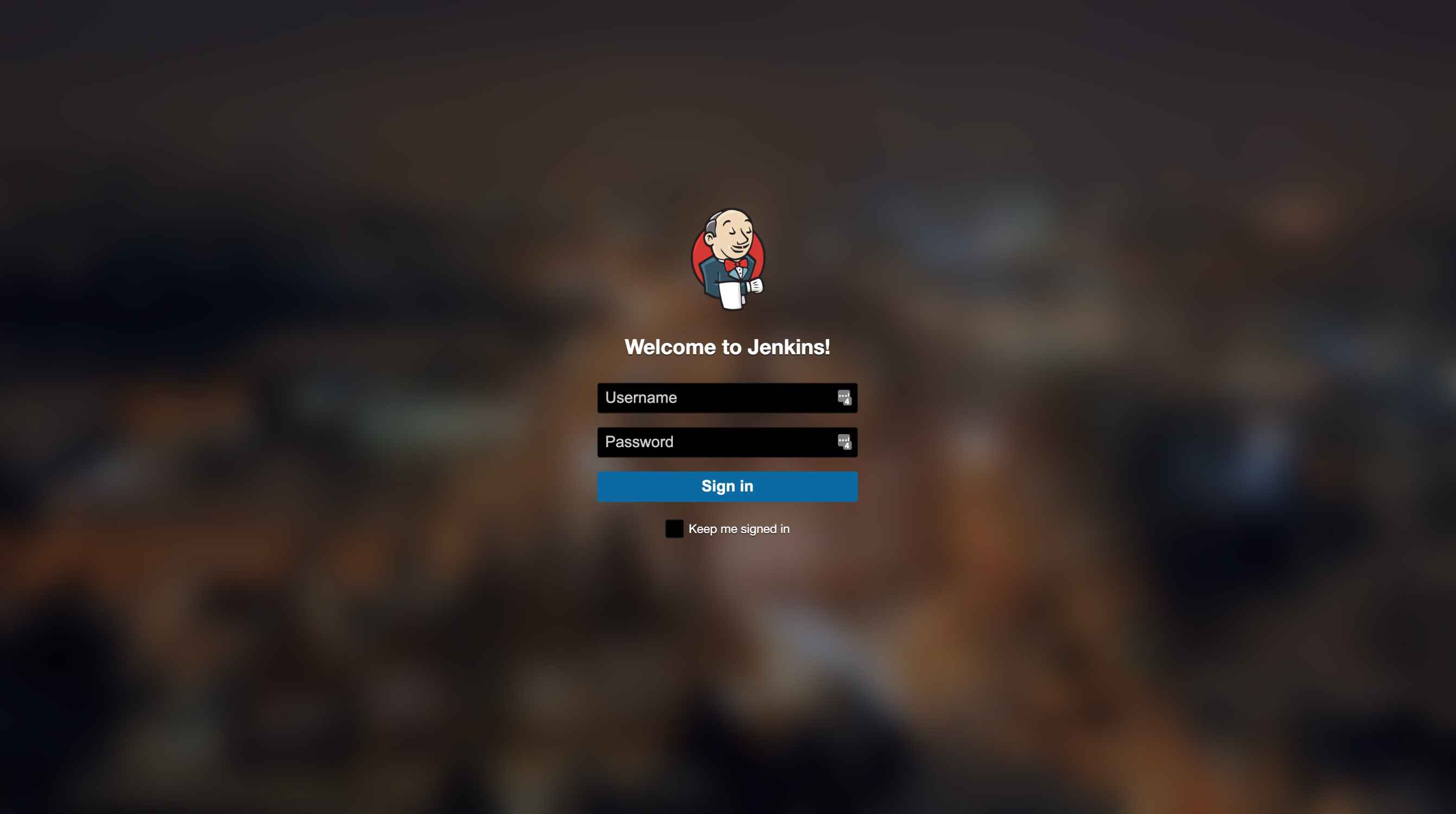
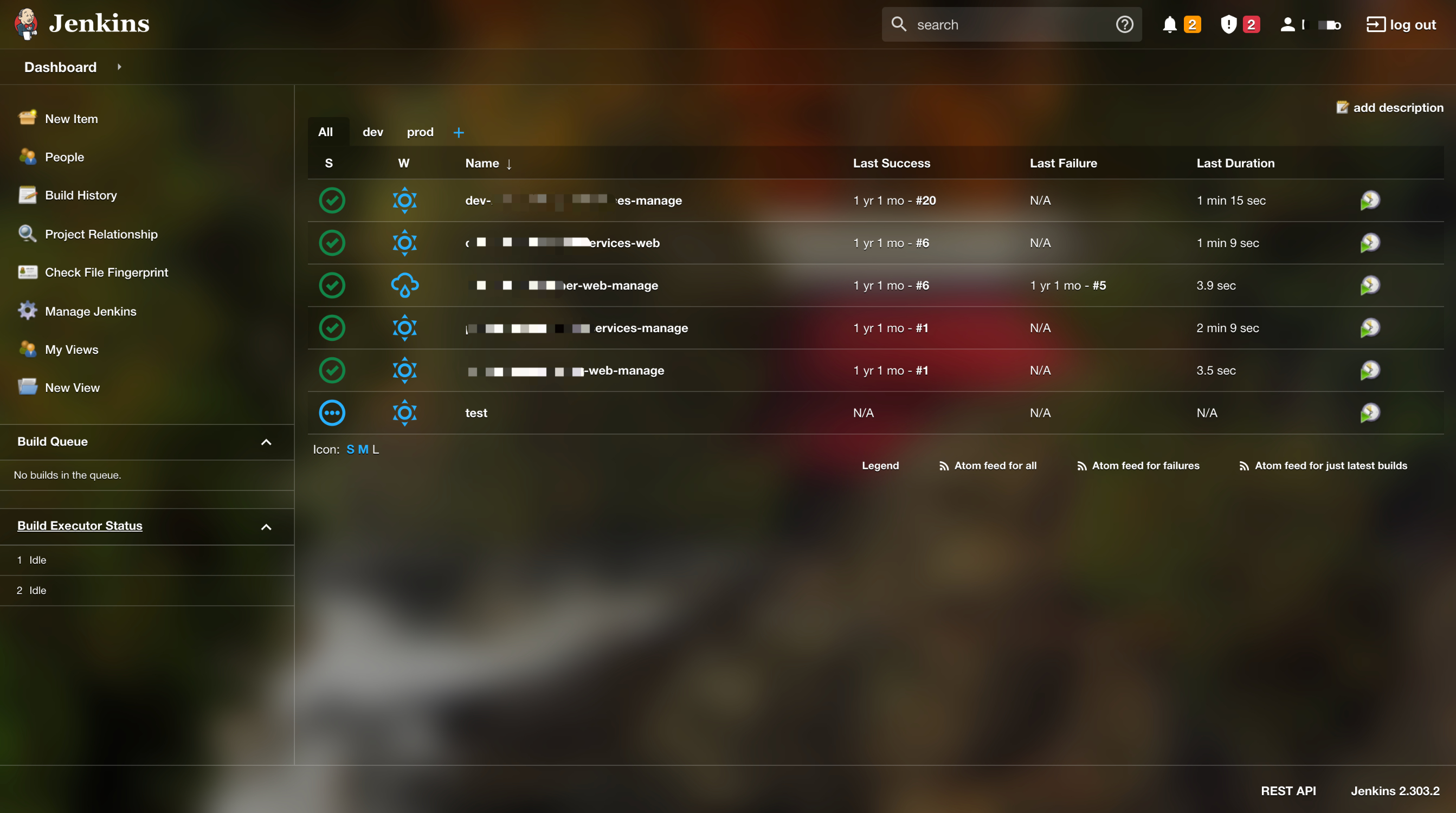
主题效果

背景使用了 Bing 的今日壁纸,每天都会看到不一样的背景,整体是半透明的风格,整体颜色风格会受到背景颜色的影响,这样每天都可以感受到不一样的效果了。

下面图片是经过压缩的,背景效果有点模糊,没真实的看着丝滑。


使用 Next.js 包装一个电影网站

发布在 技术

喜欢下载电影到 NAS 服务器上,然后可以很方便的在手机、电脑、投影仪上观看。平时去的那个电影网站,广告多,列表页没有电影的封面,页面太丑,作为前端开发实在看不下去了。

既然是自己搞来玩的,那么技术方案就可以随便选了,当练手。这次我打算用 Next.js

程序、界面都没啥难度,而且不存储数据,每次请求时通过 got 获取获取对方页面,再用 cheerio 解析得到最终数据,再用 Next.js 渲染出来。

Next.js 的路由配置方式还是比较少见的,几年前自己在做 React 项目开发的时候,也采用过这样的路由方案,这种约定优于配置的方式非常喜欢。

同时它使用 jsx 来渲染页面,之前我也没体验过,空了我也要尝试下搞个 demo

截图


前言

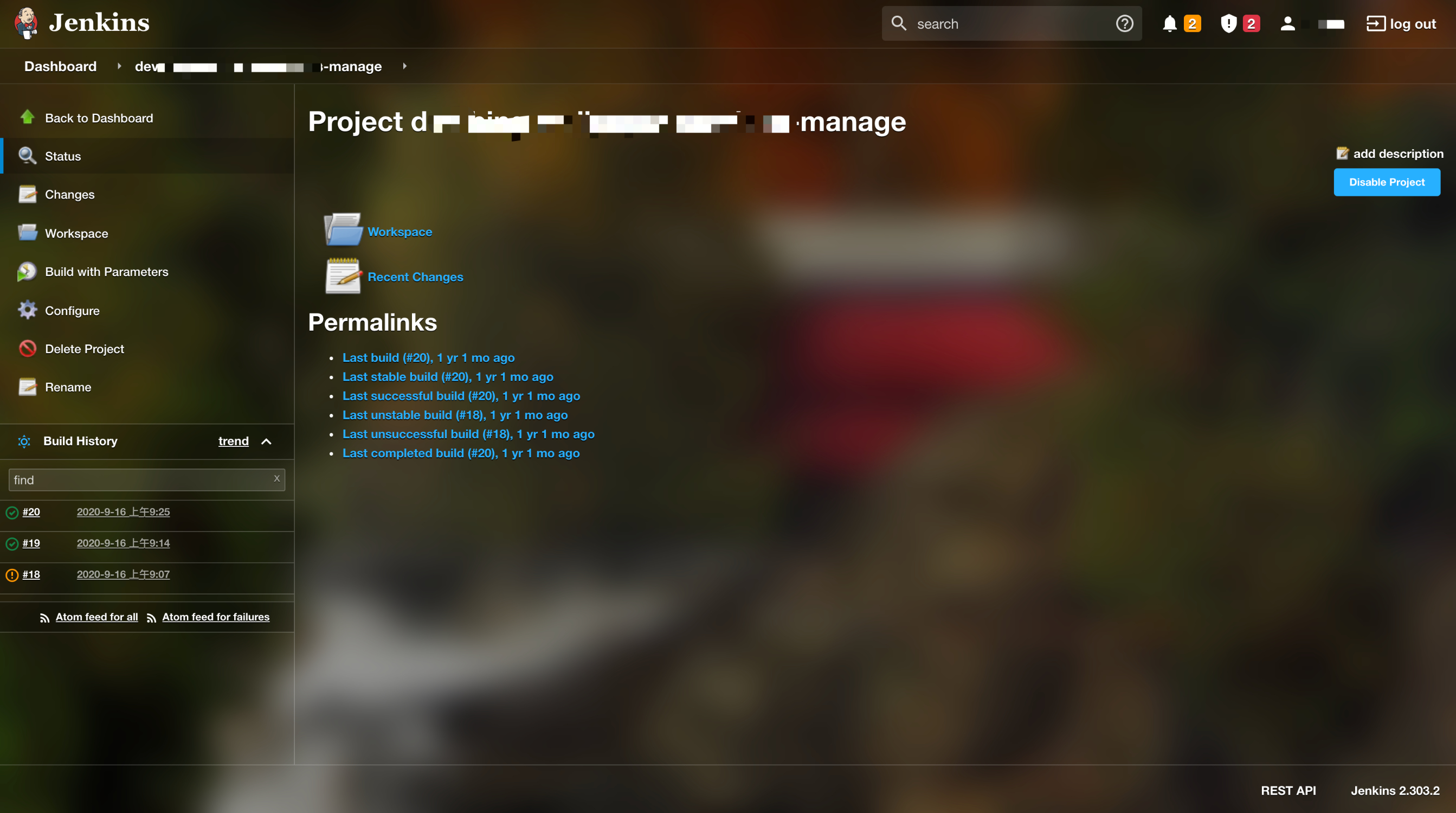
公司的管理后台系统的前端部分都是部署到阿里云的 OSS(对象存储服务)里。最开始,团队成员都是手动上传部署,但这样存在以下问题:

  • 权限管理不当:需要给多人分配 OSS 访问权限,增加安全风险。
  • 操作繁琐:每次发布都要手动执行上传操作,容易出错。
  • 缺乏版本管理:如果出现问题,难以快速回滚到之前的版本。

为了解决这些问题,我决定开发一个 Jenkins 插件,让前端部署更自动化、可控化,同时减少不必要的 OSS 访问权限。

插件功能概述

这个 Jenkins 插件的主要功能包括:

  • 全局配置:管理员可以在 Jenkins 后台配置多个 OSS 服务器和授权。
  • 任务配置:在具体的 Jenkins 任务中,选择 OSS 服务器和上传目录。
  • 自动备份:每次部署前,会自动对原来的版本进行备份,以便回滚。

全局配置(管理员设置)

为了确保安全性,OSS 相关配置只允许 Jenkins 管理员 进行设置。

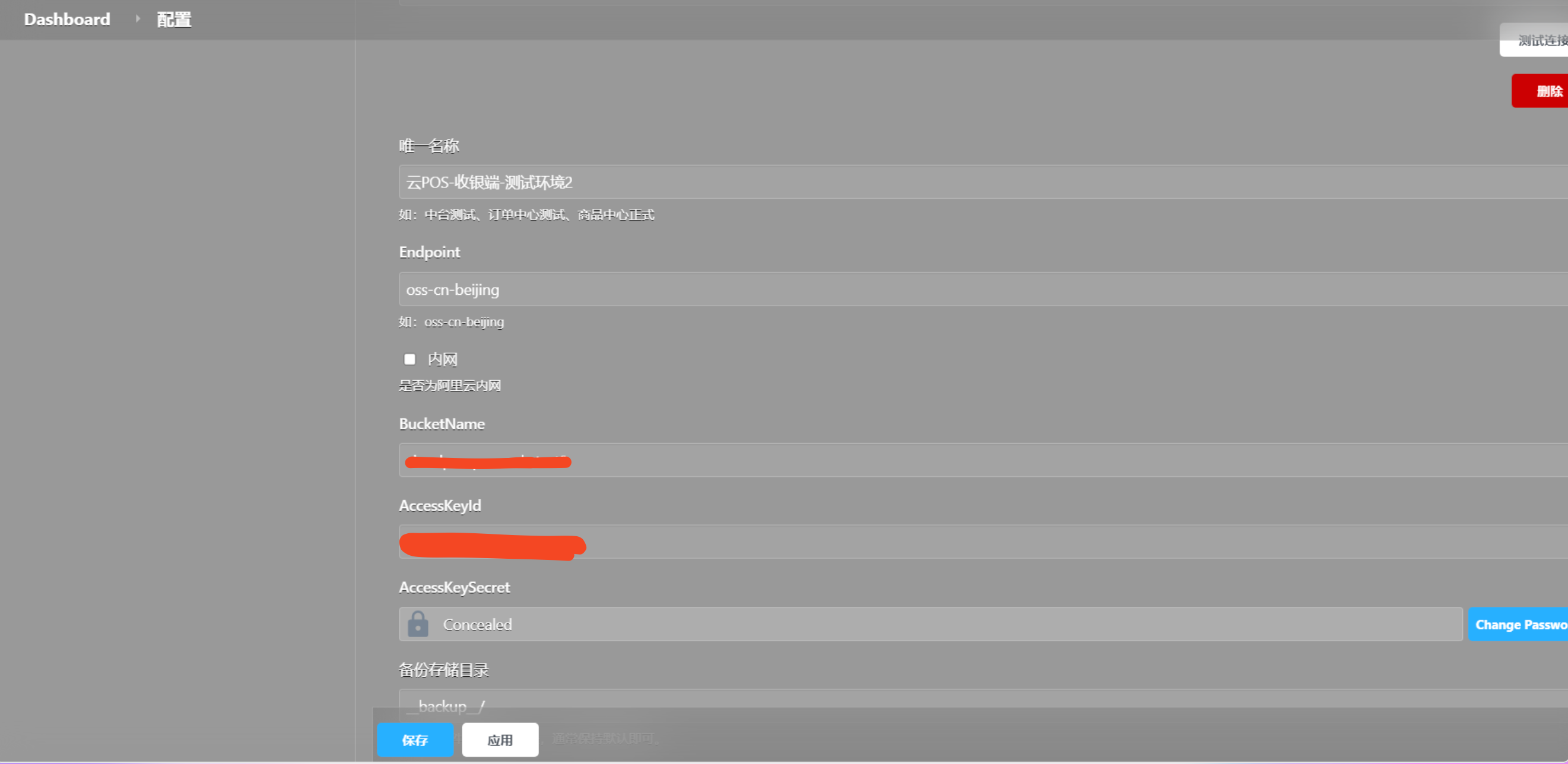
界面如下:

  • 可以配置多个 OSS 服务器和授权。
  • AccessKeySecret 使用了 Jenkins 的密码凭证 进行存储,避免明文暴露。
  • 配置完成后,可以点击 测试连接 按钮,确保 OSS 可用。
  • 每次部署时,插件会自动备份原有版本,以便紧急情况下回滚。

界面代码示例:

1
2
3
4
5
6
7
8
9
10
11
12
13
14
15
16
17
18
19
20
21
22
23
24
25
26
27
28
29
30
31
32
33
34
35
36
37
38
39
40
41
42
43
44
<?jelly escape-by-default='true'?>
<j:jelly xmlns:j="jelly:core" xmlns:st="jelly:stapler" xmlns:d="jelly:define" xmlns:l="/lib/layout" xmlns:t="/lib/hudson" xmlns:f="/lib/form" xmlns:c="/lib/credentials">
<f:section title="阿里云OSS配置">
<f:entry title="配置列表">
<f:repeatable var="server" name="servers" items="${descriptor.servers}">
<table width="100%">
<f:entry title="唯一名称" description="如:中台测试、订单中心测试、商品中心正式">
<f:textbox name="name" value="${server.name}" />
</f:entry>
<f:entry title="Endpoint" description="如:oss-cn-beijing">
<f:textbox name="endpoint" value="${server.endpoint}" />
</f:entry>
<f:entry title="内网" description="是否为阿里云内网">
<f:checkbox name="internal" checked="${server.internal}" />
</f:entry>
<f:entry title="BucketName">
<f:textbox name="bucketName" value="${server.bucketName}" />
</f:entry>
<f:entry title="AccessKeyId">
<f:textbox name="accessKeyId" value="${server.accessKeyId}" />
</f:entry>
<f:entry title="AccessKeySecret">
<f:password name="accessKeySecret" value="${server.accessKeySecret}"/>
</f:entry>
<f:entry title="备份存储目录" description="远程原文件备份存储目录,通常保持默认即可。">
<f:textbox name="backupFolder" value="${server.backupFolder}" default="__backup__/" />
</f:entry>
<f:entry title="上传临时目录" description="上传时的远程临时目录,通常保持默认即可。">
<f:textbox name="temporaryFolder" value="${server.temporaryFolder}" default="__temporary__/" />
</f:entry>
<f:entry title="最大备份数">
<f:textbox name="backupMaxNumber" value="${server.backupMaxNumber}" default="3"/>
</f:entry>
<f:validateButton title="测试连接" progress="连接中..." method="testConnection" with="endpoint,internal,bucketName,accessKeyId,accessKeySecret" />
<f:entry title="">
<div align="right">
<f:repeatableDeleteButton />
</div>
</f:entry>
</table>
</f:repeatable>
</f:entry>
</f:section>
</j:jelly>

任务配置

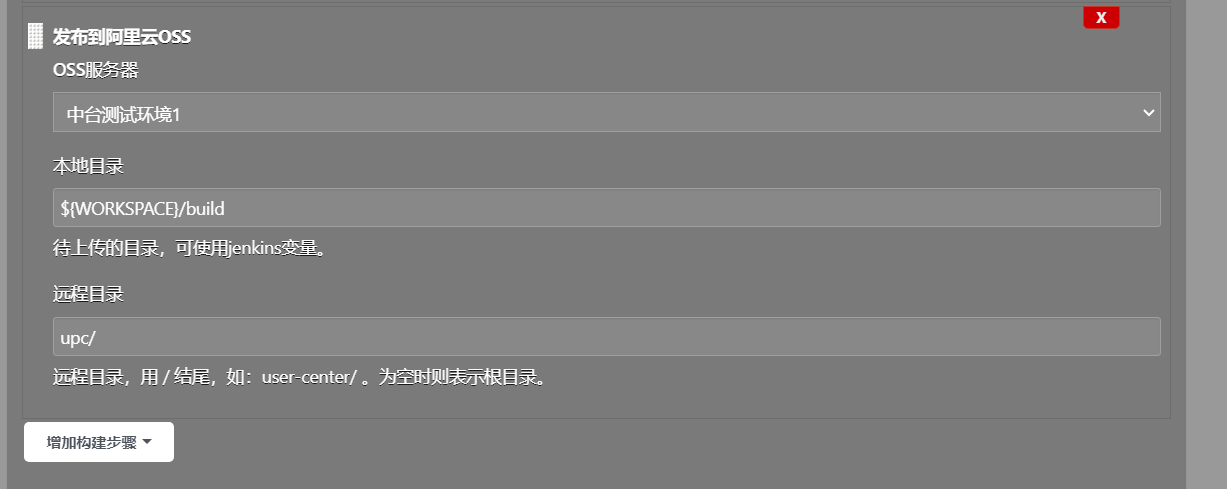
任务的配置非常简单,用户只需要:

  1. 选择已配置的 OSS 服务器
  2. 待上传的内容
  3. 指定要上传的目录

界面如下:

界面代码示例:

1
2
3
4
5
6
7
8
9
10
11
12
<?jelly escape-by-default='true'?>
<j:jelly xmlns:j="jelly:core" xmlns:st="jelly:stapler" xmlns:d="jelly:define" xmlns:l="/lib/layout" xmlns:t="/lib/hudson" xmlns:f="/lib/form">
<f:entry title="OSS服务器" field="serverName">
<f:select />
</f:entry>
<f:entry title="本地目录" field="localFolder" description="待上传的目录,可使用jenkins变量。">
<f:textbox default="${descriptor.getLocalFolderDefaultValue()}" />
</f:entry>
<f:entry title="远程目录" field="remoteFolder" description="远程目录,用 / 结尾,如:user-center/ 。为空时则表示根目录。">
<f:textbox />
</f:entry>
</j:jelly>

任务构建(文件上传)

上传文件的部分逻辑较为常规,主要使用 aliyun-sdk-oss 提供的 API 进行操作。

建议参考官方文档:阿里云 OSS 官方 SDK 文档

部分 Java 代码结构如下:

1
2
3
4
5
6
7
8
9
10
11
12
13
14
15
16
17
18
19
20
21
22
23
24
25
26
27
28
29
30
31
32
33
34
35
36
37
38
39
40
41
42
43
44
45
46
47
48
49
50
51
52
53
54
55
56
57
58
59
60
61
62
63
64
65
66
67
68
69
70
71
72
73
74
75
76
77
78
79
80
81
82
83
84
85
86
87
88
89
90
91
92
93
94
95
96
97
98
99
100
101
102
103
104
105
106
107
108
109
public class AliyunOssPublisher extends Builder {

// ...

@Override
public boolean perform(AbstractBuild<?, ?> build, Launcher launcher, BuildListener listener) throws InterruptedException, IOException {
logger = listener.getLogger();

AliyunOssServer server = findServerByName(serverName);
if (server == null) {
logger.println("未能找到名为 " + serverName + " 的服务配置");
return false;
}

// ...
if (publish()) {
logger.println("发布成功");
logger.println("准备收尾工作");
try {
cleanBackup();
shutdown();
} catch (Exception e) {
logger.println(desensitization(e.getMessage()));
}
logger.println("收尾完成");
return true;
}
return false;
}

private boolean publish() {
try {
// ...
return true;
} catch (Exception e) {
// ...
return false;
}
}

private void cleanBackup() {
logger.println("开始检查并清理多余备份内容");
// ...
}

public void shutdown() {
if (client != null && client.sdk != null) {
client.sdk.shutdown();
}
}

@Extension
public static final class AliyunOssPublisherDescriptor extends BuildStepDescriptor<Builder> {

private List<AliyunOssServer> servers = new ArrayList<>();

public AliyunOssPublisherDescriptor() {
super(AliyunOssPublisher.class);
load();
}

public AliyunOssServer[] getServers() {
return servers.toArray(new AliyunOssServer[0]);
}

@Override
public boolean isApplicable(Class<? extends AbstractProject> aClass) {
return true;
}

@Override
public String getDisplayName() {
return "发布到阿里云OSS";
}

@Override
public boolean configure(StaplerRequest req, JSONObject formData)
throws FormException {
// ...
}

public String getLocalFolderDefaultValue() {
return "${WORKSPACE}/build";
}

public ListBoxModel doFillServerNameItems() {
ListBoxModel m = new ListBoxModel();
AliyunOssServer[] servers = getServers();
for (AliyunOssServer server : servers) {
m.add(server.getName());
}
return m;
}

public FormValidation doTestConnection(@QueryParameter("endpoint") String endpoint,
@QueryParameter("internal") Boolean internal,
@QueryParameter("bucketName") String bucketName,
@QueryParameter("accessKeyId") String accessKeyId,
@QueryParameter("accessKeySecret") String accessKeySecret) throws Exception {
AliyunOssClient client = new AliyunOssClient(endpoint, internal, bucketName, accessKeyId, SecretHelper.decrypt(accessKeySecret));
try {
client.test();
return FormValidation.ok("链接成功");
} catch (Exception e) {
return FormValidation.error("链接失败:" + e.getMessage());
}
}
}
}

入门教程

如果你是第一次开发 Jenkins 插件,推荐先阅读官方的入门教程:Jenkins Plugin 开发入门

这个教程简单直接,可以帮助你快速了解 Jenkins 插件的开发流程,避免走弯路。

如何进阶

Jenkins 官方的入门教程比较基础,要真正开发一个插件,你可能会遇到一些文档里没有覆盖的问题。我的建议是:

找类似插件的源码:比如一些已有的 Jenkins OSS 上传插件,看看它们是如何实现的。

如何调试

参考:https://blog.csdn.net/xueerfei008/article/details/81871241

文章中是以 MacOS 为例子。

如何运行

在命令行中执行:mvn hpi:run

如何打包

在命令行中执行:mvn clean install

如何发版

修改 pom.xml 中的版本号,再执行 打包命令,打包得到 hpi 文件。

结语

这次是我第一次正式用 Java 开发,过程充满挑战,但也收获颇丰。希望这篇文章能帮助到想开发 Jenkins 插件的同学。🎉

如果你有更好的建议或者遇到问题,欢迎交流!

免责声明

  • 仅技术学习研究未对外发布过任何相关工具
  • 发布本文时此方法已经基本失效

前言

钉钉的消息,只要打开就会自动变为已读,我的一个朋友说这让他很烦恼,问我能不能干掉这个功能,改为手动确定消息为已读。

思路

这个功能肯定是用户点开了消息再调用服务端接口告知此消息为已读的,那么就有两个思路:

  • 方案 1:通过修改客户端,避免触发已读操作。

  • 方案 2:通过拦截网络请求,阻止已读接口的调用。

考虑到钉钉的客户端是使用 ElectronJS 技术进行开发,加上朋友希望界面上能有按钮让他手动确认消息为已读。所以优先选择方案 1。

在钉钉的安装目录下可以找到 webcontent 文件夹,里面存储了聊天界面的相关 html、css 和 js 代码。

通过分析后,需要调整的代码在 webcontent/assets/chatbox-index.js 文件中。

需要注意的是代码都是压缩过的并且文件超大,需要进行格式化再通过一些可能的关键词去查找相关代码,比如 updateToRead

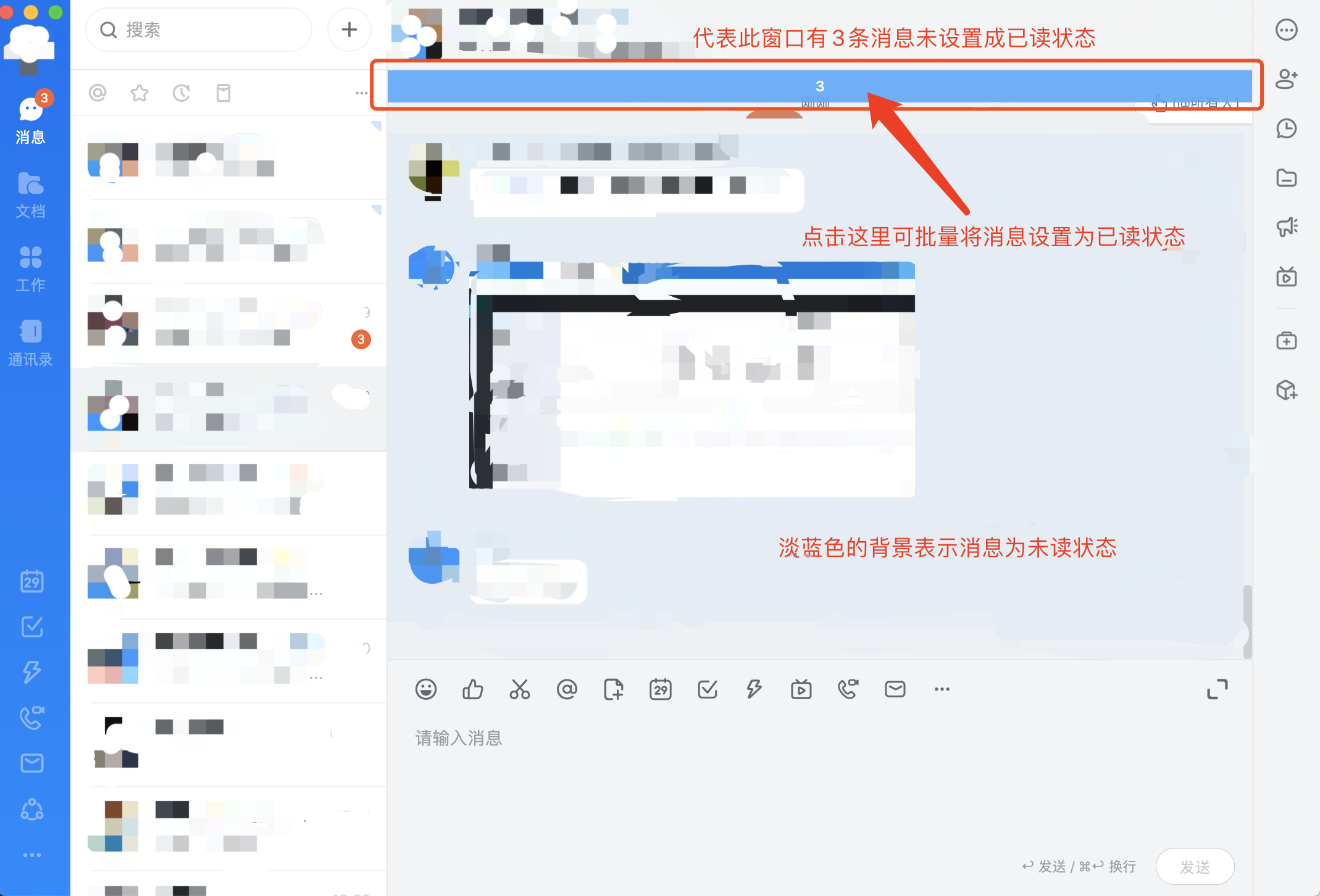
功能实现效果

经过 7749 次修改,最终实现以下效果:

  • 查看消息不会调用已读接口,对方看到的消息状态依然是未读。
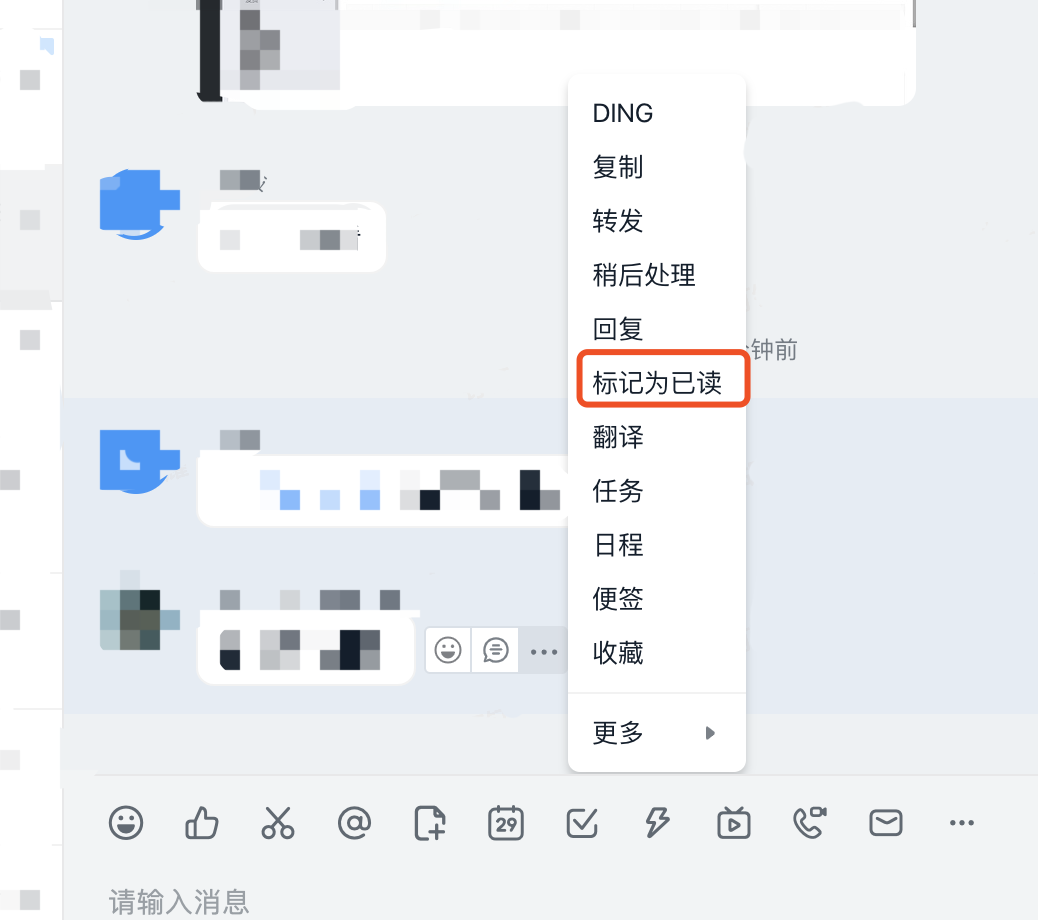
  • 右键菜单中新增了标记已读功能,用户可以手动标记单条消息为已读。
  • 未读消息背景为淡蓝色,已读消息则为原始效果。
  • 消息框顶部增加 当前窗口可视区域内有多少条未读消息,点击后可批量把这些消息更新为已读状态;

前言

最近和朋友讨论技术的时候,提到这个 Query Builder,于是写了个简单的 Demo。

什么是 Query Builder?

  • 用于构建复杂查询条件,如 SQL 查询、查询条件,API 过滤等
  • 主要用于管理搜索条件、数据筛选、报告生成等

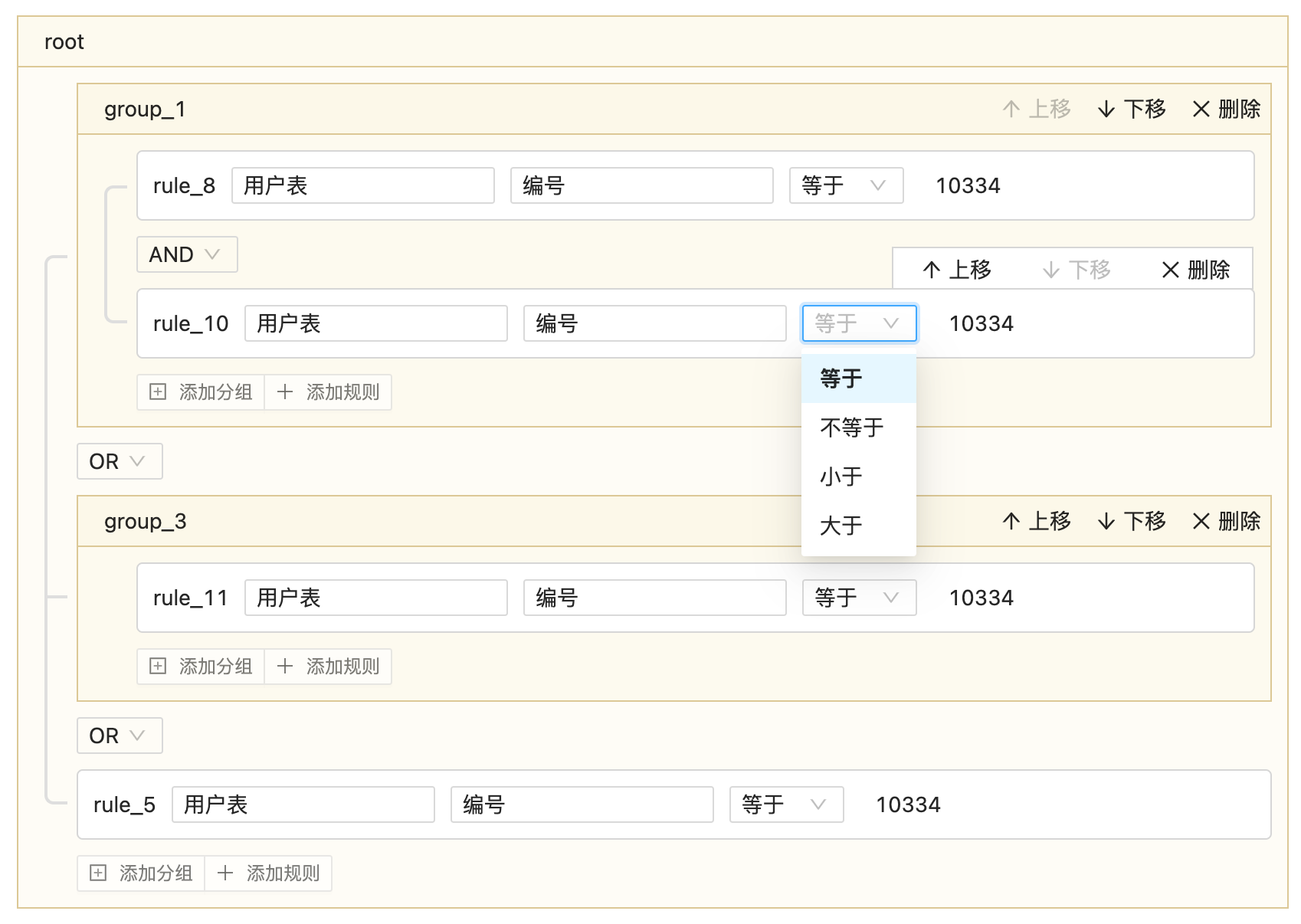
目标功能

  • 用户可以添加/删除查询条件
  • 支持 AND / OR 逻辑组合
  • 支持分组
  • 支持各类操作符

技术选择

React + TypeScript + Ant Design

类型定义

1
2
3
4
5
6
7
8
9
10
11
12
13
14
15
16
17
18
19
20
21
22
23
24
25
26
27
28
29
30
export interface QueryBuilderGroup {
id: string;
type: "group";
name?: string;
childrens: QueryBuilderItem[];
}

export interface QueryBuilderRule {
id: string;
type: "rule";
dataset: string;
datafield: string;
operator: QueryBuilderOperator;
value: any;
}

export interface QueryBuilderConnector {
id: string;
type: "connector";
value: QueryBuilderConnectorValue;
}

export type QueryBuilderConnectorValue = "OR" | "AND";

export type QueryBuilderItem =
| QueryBuilderGroup
| QueryBuilderRule
| QueryBuilderConnector;

export type QueryBuilderOperator = "=" | "<>" | "<" | ">";

具体实现

因为是快速做的 Demo,所以一把梭,并没有分太多组件出来。

1
2
3
4
5
6
7
8
9
10
11
12
13
14
15
16
17
18
19
20
21
22
23
24
25
26
27
28
29
30
31
32
33
34
35
36
37
38
39
40
41
42
43
44
45
46
47
48
49
50
51
52
53
54
55
56
57
58
59
60
61
62
63
64
65
66
67
68
69
70
71
72
73
74
75
76
77
78
79
80
81
82
83
84
85
86
87
88
89
90
91
92
93
94
95
96
97
98
99
100
101
102
103
104
105
106
107
108
109
110
111
112
113
114
115
116
117
118
119
120
121
122
123
124
125
126
127
128
129
130
131
132
133
134
135
136
137
138
139
140
141
142
143
144
145
146
147
148
149
150
151
152
153
154
155
156
157
158
159
160
161
162
163
164
165
166
167
168
169
170
171
172
173
174
175
176
177
178
179
180
181
182
183
184
185
186
187
188
189
190
191
192
193
194
195
196
197
198
199
200
201
202
203
204
205
206
207
208
209
210
211
212
213
214
215
216
217
218
219
220
221
222
223
224
225
226
227
228
229
230
231
232
233
234
235
236
237
238
239
240
241
242
243
244
245
246
247
248
249
250
251
252
253
254
255
256
257
258
259
260
261
262
263
264
265
266
267
268
269
270
271
272
273
274
275
276
277
278
279
280
281
282
283
284
285
286
287
288
289
290
291
292
293
294
295
296
297
298
299
300
301
302
303
304
305
306
307
308
309
310
311
312
313
314
315
316
import _ from "lodash";
import React, { FormEvent, useState } from "react";
import classNames from "classnames";
import { Select, Input, Button, Form } from "antd";
import { useForm } from "antd/lib/form/Form";
import {
ArrowUpOutlined,
ArrowDownOutlined,
CloseOutlined,
PlusSquareOutlined,
PlusOutlined,
} from "@ant-design/icons";
import {
QueryBuilderConnector,
QueryBuilderConnectorValue,
QueryBuilderGroup,
QueryBuilderItem,
QueryBuilderOperator,
QueryBuilderRule,
} from ".";
import "./style.less";

const Option = Select.Option;

const RuleOperator: React.FC<{
value: QueryBuilderOperator;
}> = (props) => {
let options = [
{ title: "等于", value: "=" },
{ title: "不等于", value: "<>" },
{ title: "小于", value: "<" },
{ title: "大于", value: ">" },
];
return (
<Select size="small" value={props.value}>
{options.map((n) => (
<Option value={n.value}>{n.title}</Option>
))}
</Select>
);
};

const QueryBuilder: React.FC = (props) => {
const [form] = useForm();
const [root, setRoot] = useState<QueryBuilderGroup>({
id: "root",
type: "group",
childrens: [],
});

const isConnector = (
node: QueryBuilderItem
): node is QueryBuilderConnector => {
return (node as any).type == "connector";
};

const isGroup = (node: QueryBuilderItem): node is QueryBuilderGroup => {
return (node as any).type == "group";
};

const isRule = (node: QueryBuilderItem): node is QueryBuilderRule => {
return (node as any).type == "rule";
};

const build = (
node: QueryBuilderItem,
parent: QueryBuilderGroup | null = null,
level: number = 0
) => {
if (isConnector(node)) {
return buildConnector(node, parent!);
}
if (isRule(node)) {
return buildRule(node, parent!);
}
if (isGroup(node)) {
return buildGroup(node, parent, level);
}
};

const buildRoot = (node: QueryBuilderGroup, level: number) => {};

const buildConnector = (
node: QueryBuilderConnector,
parent: QueryBuilderGroup
) => {
const change = (value: QueryBuilderConnectorValue) => {
node.value = value;
setRoot({ ...root });
};

return (
<div className="connector">
<Select size="small" value={node.value} onChange={change}>
<Option value="OR">OR</Option>
<Option value="AND">AND</Option>
</Select>
</div>
);
};

const buildRule = (node: QueryBuilderRule, parent: QueryBuilderGroup) => {
let first = parent.childrens.findIndex((n) => n == node) == 0;
let last =
parent.childrens.findIndex((n) => n == node) ==
parent.childrens.length - 1;

return (
<div className={classNames("rule", { first: first, last: last })}>
<div className="rule-controls">
<div className="rule-id">{node.id}</div>
<div className="rule-dataset">
<Input size="small" value={node.dataset} />
</div>
<div className="rule-datafield">
<Input size="small" value={node.datafield} />
</div>
<div className="rule-operator">
<RuleOperator value={node.operator} />
</div>
<div className="rule-value">{node.value}</div>
</div>
{buildActions(node, parent)}
</div>
);
};

const buildActions = (
node: QueryBuilderRule | QueryBuilderGroup,
parent: QueryBuilderGroup
) => {
let len = parent.childrens.length;
let index = parent.childrens.findIndex((n) => n == node);

const moveUp = () => {
let prev = parent.childrens[index - 2];
parent.childrens[index - 2] = parent.childrens[index];
parent.childrens[index] = prev;
setRoot({ ...root });
};

const moveDown = () => {
let next = parent.childrens[index + 2];
parent.childrens[index + 2] = parent.childrens[index];
parent.childrens[index] = next;
setRoot({ ...root });
};

const remove = () => {
if (len > 1) {
if (index == len - 1) {
parent.childrens.length = len - 2;
} else {
parent.childrens.splice(index, 2);
}
} else {
parent.childrens = [];
}
setRoot({ ...root });
};

return (
<div className="action">
<div className="action-items">
<span
className={classNames("action-item", {
disable: len == 1 || index == 0,
})}
onClick={moveUp}
>
<ArrowUpOutlined />
<span>上移</span>
</span>
<span
className={classNames("action-item", {
disable: len == 1 || index == len - 1,
})}
onClick={moveDown}
>
<ArrowDownOutlined />
<span>下移</span>
</span>
<span className="action-item" onClick={remove}>
<CloseOutlined />
<span>删除</span>
</span>
</div>
</div>
);
};

const buildGroup = (
node: QueryBuilderGroup,
parent: QueryBuilderGroup | null,
level: number
) => {
let classes = classNames("group", `group-level-${level}`);
if (parent) {
let first = parent.childrens.findIndex((n) => n == node) == 0;
let last =
parent.childrens.findIndex((n) => n == node) ==
parent.childrens.length - 1;
classes = classNames(classes, { first: first, last: last });
}

return (
<div className={classes}>
<div className="group-header">
<div className="group-title">
<Form.Item
name={`group-${node.id}-name`}
noStyle
initialValue={node.id}
>
<Input size="small" />
</Form.Item>
</div>
{parent && buildActions(node, parent)}
</div>
<div className="group-body">
{node.childrens.map((n) => build(n, node, level++))}
</div>
<div className="group-footer">{buildAdder(node)}</div>
</div>
);
};

const buildAdder = (node: QueryBuilderGroup) => {
const addGroup = () => {
if (node.childrens.length > 0) {
node.childrens.push({
id: _.uniqueId("connector_"),
type: "connector",
value: "OR",
});
}
let id = _.uniqueId("group_");
node.childrens.push({
id: id,
type: "group",
name: id,
childrens: [],
});
setRoot({ ...root });
};
const addRule = () => {
if (node.childrens.length > 0) {
node.childrens.push({
id: _.uniqueId("connector_"),
type: "connector",
value: "OR",
});
}
node.childrens.push({
id: _.uniqueId("rule_"),
type: "rule",
dataset: "用户表",
datafield: "编号",
operator: "=",
value: "10334",
});
setRoot({ ...root });
};

return (
<div className="adder">
<Button.Group size="small">
<Button onClick={addGroup}>
<PlusSquareOutlined />
添加分组
</Button>
<Button onClick={addRule}>
<PlusOutlined />
添加规则
</Button>
</Button.Group>
</div>
);
};

const onValuesChange = (changedValues: any, values: any) => {
const find = (item: QueryBuilderItem, id: string): any => {
if (id == item.id) {
return item;
}
if (isGroup(item) && item.childrens && item.childrens.length > 0) {
for (const n of item.childrens) {
let result = find(n, id);
if (result) {
return result;
}
}
}
};
for (const key in changedValues) {
let [type, id, field] = key.split("-");
let node = find(root, id);
if (node) {
node[field] = changedValues[key];
}
}
console.log(root);
};

console.log(JSON.stringify(root));

return (
<div className="query-builder">
<Form form={form} onValuesChange={onValuesChange}>
{build(root)}
</Form>
</div>
);
};

export { QueryBuilder };

Demo 效果

因为是 Demo 的原因,数据集、字段名、字段值等并没有怎么做,只有一个实例。

前言

在团队开发中,有时需要共享常用代码片段,例如通用列表页、通用详情页等。我想是否可以通过 VS Code 扩展来帮助团队高效地管理并使用这些片段。

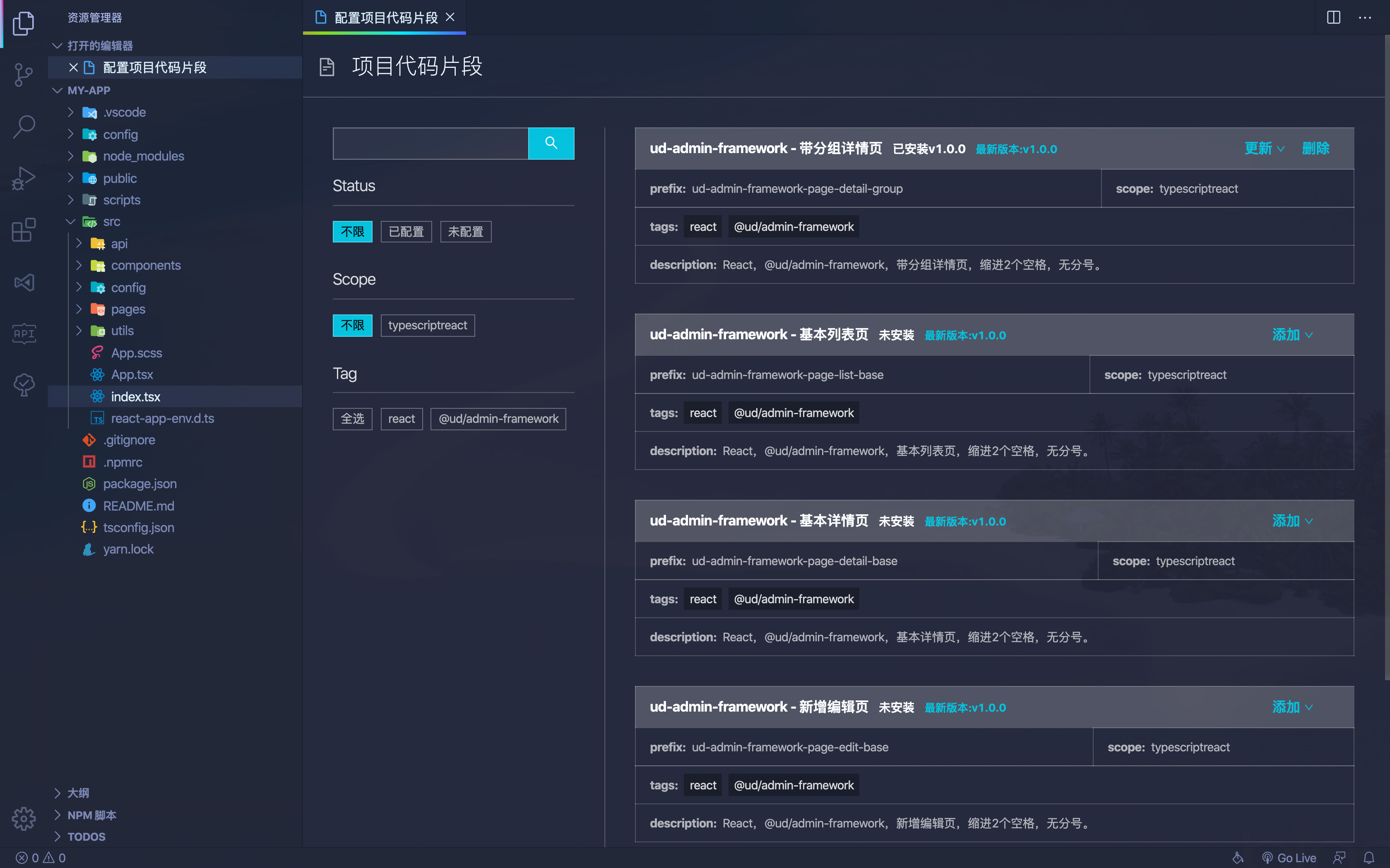
本文将讨论如何开发一个 VS Code 扩展,将代码片段保存在 GitLab 仓库中,并在扩展中提供 Webview 显示、下载到项目中以及编辑管理的功能。

效果图

思路分析

  • 将代码片段存储在 GitLab 仓库,方便维护和管理。
  • 通过 Webview 显示代码片段列表,便于选择并提供操作。
  • 在 Webview 中提供增删和更新代码片段功能。

GitLab 仓库中管理代码片段

为了让代码片段管理更加规范化,我们需要设计一个合理的 GitLab 仓库结构。

考虑到有以下需求:

  • 代码片段支持多个版本。
  • 代码片段需要包含元数据(作者、更新时间、标签、描述等)。
  • 需要提供 API 供 VS Code 扩展使用,以便获取所有代码片段。

目录结构设计如下:

1
2
3
4
5
6
7
8
9
10
11
12
scripts
├── build.js # 用于构建代码片段,生成 JSON 文件
src
├── code-snippet-1
│ ├── 1.0.0.tsx # 片段的代码内容
│ ├── index.json # 代码片段的元数据
│ ├── 1.0.0.json # 构建后的代码片段
├── code-snippet-2
│ ├── 1.0.0.tsx
│ ├── index.json
│ ├── 1.0.0.json
index.json # 所有代码片段列表,由 build.js 生成

片段的代码内容示例

1
2
3
4
5
6
7
8
9
10
11
12
13
14
15
16
17
18
19
20
21
22
23
import React, { Component } from "react";

class $TM_FILENAME_BASE$ extends Component<
I$TM_FILENAME_BASE$Props,
I$TM_FILENAME_BASE$State
> {
constructor(props: I$TM_FILENAME_BASE$Props) {
super(props);
this.state = {};
}

componentDidMount() {}

render() {
return <div></div>;
}
}

interface I$TM_FILENAME_BASE$Props {}

interface I$TM_FILENAME_BASE$State {}

export default $TM_FILENAME_BASE$;

代码片段元数据信息:

1
2
3
4
5
6
7
8
{
"name": "ud-react-class-component",
"scope": "typescriptreact",
"prefix": "ud-react-class-component",
"tags": ["react"],
"description": "React,class component,缩进2个空格,无分号。",
"author": "yaoworld"
}

扩展中 Webview 显示页面内容

这部分技术基本看官方文档就行,但还是有 2 个点需要注意。

Webview 加载远程内容

  • VS Code Webview 不支持直接设置 src,只能设置 HTML。可以通过以下方法动态加载内容:
1
2
3
4
5
6
7
8
9
10
this.webviewPanel.webview.html = await this.getWebViewContent(path);

async getWebViewContent(path: string) {
let url = 'http://127.0.0.1:1234'
let html = await rp(url)
html = html.replace(/(<link.*?href="|<script.(!>)*?src="|<img.*?src=")(.+?)"/g, (m: string, $1: string, $2: string, $3: string) => {
return $1 + (url + $3) + '"'
})
return html.replace('$currentPath', path)
}

Webview 不支持常规路由

经过测试目前是不支持的前端常规路由(不包含内存路由)的,除此之外还有不少功能都是有限制的。

要么通过多入口的方式解决。

要么使用类似内存路由的方式解决,如果加载时需要加载其他路径,可以参考下面方式解决。

1
2
3
4
5
<script>
window.my = {
currentPath: "$currentPath",
};
</script>
1
2
// vs code 再加载 html 内容给 webview 前进行替换
html.replace("$currentPath", path);

读取和写入本地代码片段

原理就是在当前项目的 .vscode 目录下 创建一个 xx.code-snippets 文件,内容格式是 JSON,里面存储着当前项目的所有代码片段。

读取代码片段,可以参考:

1
2
3
4
5
6
7
8
9
10
11
12
13
14
15
16
17
private read = () => {
if (vscode.workspace.rootPath == null) {
throw new Error('请先打开一个工作区,再运行此命令')
}
const filePath = path.join(vscode.workspace.rootPath, '.vscode', 'my.code-snippets')
if (!fs.existsSync(filePath)) {
const dir = path.join(vscode.workspace.rootPath, '.vscode')
if (!fs.existsSync(dir)) {
fs.mkdirSync(dir, { recursive: true })
}
fs.writeFileSync(filePath, '{}')
return {}
}
const json = fs.readFileSync(filePath).toString()
const snippets = JSON.parse(json)
return snippets
}

写入代码与读取类似,只需使用 fs.writeFileSync 方法更新 my.code-snippets 文件。

如何将普通代码转换为代码片段

因为代码片段中存在一些变量,如 ${TM_FILENAME_BASE},但这个语法在我们的 tsx 是不合法的。所以我们需要做一下转换,比如使用 $TM_FILENAME_BASE$ 来表达。

先通过代码进行变量写法转换后,再通过下面的 toSnippet 方法对代码内容进行转换。

1
2
3
4
5
6
7
8
9
10
11
12
13
function toSnippet(code) {
const separatedSnippet = code
.replace(/\\/g, "\\\\")
.replace(/"/g, '\\"')
.split("\n");
const separatedSnippetLength = separatedSnippet.length;

let snippet = separatedSnippet.map((line, index) => {
return index === separatedSnippetLength - 1 ? `"${line}"` : `"${line}",`;
});
snippet = snippet.join("\n");
return snippet;
}

转换后,再包装成如下格式就行了:

1
2
3
4
5
6
{
"body": [
"import React from 'react';",
"export default () => <div>Hello World</div>;"
]
}

结语

本文只介绍了些思路,具体的一些实现细节,需要自己看文档摸索下。

作者的图片

YaoWorld

热爱编程,热爱生活。

前端工程师

中国-成都